

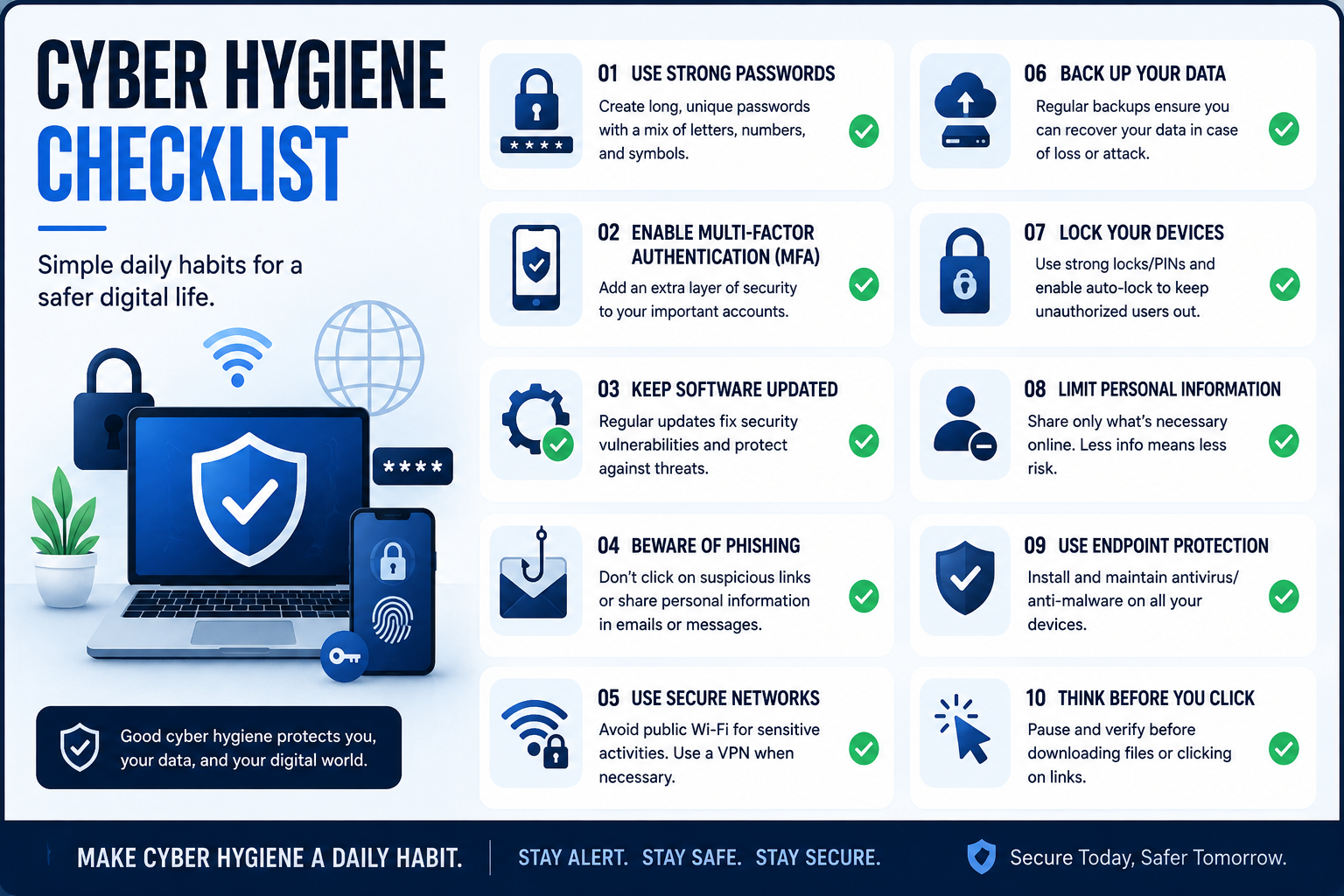
Cyber threats do not always require sophisticated hacking. A reused password, outdated app, careless click, or unsecured Wi-Fi network can give attackers an opportunity. That is why maintaining good digital habits is just as important as using security software.
A cyber hygiene checklist helps you turn cybersecurity into a routine. Instead of waiting until an account is compromised, you can regularly check passwords, MFA, software updates, backups, privacy settings, devices, and online activity.
Whether you are a home user, student, employee, or small-business owner, the following checklist gives you practical steps to reduce common security risks.
What Is Cyber Hygiene?
Cyber hygiene is the practice of maintaining regular security habits that protect your accounts, devices, data, and online identity. It is similar to physical hygiene: small actions performed consistently can prevent bigger problems later.
Examples of good cyber hygiene include using unique passwords, enabling multi-factor authentication, installing security updates, backing up important files, and recognizing phishing attempts. These practices do not guarantee complete protection, but they can significantly reduce avoidable security risks.
Why Is Cyber Hygiene Important?
Cybercriminals frequently target weaknesses that are easy to exploit. Stolen passwords, phishing messages, outdated software, malicious downloads, and exposed personal information can lead to account takeover, identity theft, malware infections, or financial fraud.
Good cyber hygiene creates multiple layers of protection. If one security control fails, another may still prevent an attacker from gaining access or causing serious damage.
Cyber Hygiene Checklist: 25 Essential Steps
Use this master checklist to review your personal cybersecurity.
1. Use Strong, Unique Passwords
Use a different, long password or passphrase for every important account. Avoid names, birthdays, phone numbers, or predictable patterns.
A password manager can generate and securely store unique credentials, making password reuse much less tempting.
2. Enable Multi-Factor Authentication
Turn on MFA for email, banking, social media, cloud storage, and work accounts. Whenever possible, use an authenticator app, passkey, or security key instead of relying only on SMS.
Your email should be one of the first accounts you protect because it can often be used to reset other passwords.
3. Keep Software Updated
Enable automatic updates for operating systems, browsers, applications, and security software. Do not ignore repeated update notifications.
Security updates can fix vulnerabilities that attackers may otherwise exploit. Also replace software or devices that no longer receive security updates.
4. Secure Your Email Account
Your email account is often the gateway to your digital identity.
Check its recovery email and phone number, review active sessions, enable MFA, and remove unfamiliar forwarding rules or connected applications. Be especially careful with unexpected password-reset messages.
5. Learn to Recognize Phishing
Before clicking a link, opening an attachment, or sharing information, ask:
Was I expecting this message?
Is the sender actually who they claim to be?
Is the request unusually urgent?
Does the link lead to the legitimate domain?
Is someone asking for a password, OTP, or financial information?
When something seems suspicious, verify it through an official website or trusted contact method.
6. Lock and Protect Your Devices
Use a strong screen lock, PIN, biometric authentication, and automatic locking. Enable device encryption when available.
If a laptop or smartphone is lost, these controls can make it much harder for someone else to access your personal information.
7. Back Up Important Data
Back up documents, photos, business files, financial records, and other irreplaceable information.
Consider keeping more than one backup and periodically test whether your backups can actually be restored. A backup that has never been tested may not be reliable when you need it most.
8. Secure Your Home Wi-Fi
Change default router administrator credentials and use modern wireless security. Keep the router firmware updated and disable unnecessary remote administration.
Review connected devices regularly. If your router supports a guest network, consider using it for visitors and suitable smart-home devices.
9. Review App Permissions
Check which applications can access your camera, microphone, location, contacts, photos, and files.
If an application does not need a permission to perform its function, consider removing that access. Periodically review permissions because apps can change functionality over time.
10. Secure Your Web Browser
Keep your browser updated and remove extensions you no longer use. Review saved passwords, website permissions, notifications, and downloaded files.
Avoid installing browser extensions or software from unknown sources. A clean, updated browser is an important part of everyday cyber hygiene.
11. Protect Online Banking and Shopping
Use MFA and transaction notifications for financial accounts whenever available. Access banking services through official applications or websites rather than links in unexpected messages.
Monitor transactions regularly and report suspicious activity quickly. Avoid entering sensitive financial information on unfamiliar websites.
12. Improve Social Media Security
Enable MFA and use a unique password for each social account. Review privacy settings and connected third-party applications.
Avoid publicly sharing unnecessary personal details such as your address, travel plans, security-question answers, or other information that could help someone impersonate you.
13. Remove Unused Accounts and Apps
Old accounts can become forgotten security risks, particularly when they contain personal information or use old passwords.
Delete accounts you no longer need and uninstall applications that you no longer use. Where deletion is unavailable, remove unnecessary permissions and personal information.
14. Use Device Tracking Features
Enable legitimate device-location and remote-wipe features on smartphones and laptops where available.
These tools can help you locate a lost device or protect information if it falls into the wrong hands.
15. Protect Sensitive Information
Think before sharing personal, financial, workplace, or identity information online.
Use the principle of data minimization: provide only the information genuinely required by a service. The less unnecessary information you expose, the less information an attacker can potentially exploit.
16. Be Careful on Public Wi-Fi
Avoid performing highly sensitive activities on unfamiliar networks unless you understand the security risks.
Keep your device firewall and security protections enabled, verify the network name carefully, and avoid automatically connecting to unknown networks.
17. Secure Smart-Home Devices
Cameras, smart TVs, speakers, doorbells, and other IoT devices should not be ignored.
Change default credentials, install firmware updates, disable unnecessary features, and place suitable devices on a separate guest or IoT network when your router supports it.
18. Protect Your Work Accounts
Employees should use company-approved security tools and follow organizational policies.
Never reuse a work password on personal websites. Report suspicious emails, unexpected MFA requests, lost devices, and unusual account activity to the appropriate security team.
19. Encrypt Sensitive Data
Use encryption features provided by your operating system, smartphone, cloud service, or storage solution.
Encryption helps protect information if a device or storage medium is lost or stolen.
20. Review Account Activity
Periodically check login history, active sessions, security alerts, and connected devices.
If you see an unfamiliar login, investigate immediately. Change the password, revoke unknown sessions, and enable stronger authentication if necessary.
21. Secure Account Recovery Options
Keep recovery email addresses and phone numbers current. Store backup codes somewhere secure and accessible when needed.
Account recovery is frequently overlooked, but weak recovery settings can undermine otherwise strong password and MFA protection.
22. Use Passkeys Where Available
Passkeys can provide stronger protection against phishing than traditional passwords because authentication is tied to the device and cryptographic credentials.
For supported services, consider using passkeys alongside other appropriate account-security controls.
23. Avoid Pirated or Untrusted Software
Cracked applications, unofficial downloads, and suspicious browser extensions can contain malware or unwanted components.
Download software from official sources whenever possible and verify that applications are legitimate before installing them.
24. Monitor for Breach or Security Alerts
Pay attention to notifications from important services about password changes, new logins, suspicious activity, or exposed credentials.
Do not ignore security alerts simply because the account appears to be working normally.
25. Create an Incident Response Plan
Know what you will do if an account, device, or email is compromised.
Keep important provider contact information, recovery methods, backups, and emergency steps accessible. Having a plan reduces confusion when you are under pressure.
Cyber Hygiene Checklist: Daily, Weekly, and Monthly
Cyber hygiene works best as a routine rather than a once-a-year activity.
The exact frequency can vary according to your risk. A business administrator managing sensitive systems may need much more frequent reviews than a casual home user.
Cyber Hygiene Checklist for Employees
Employees are an important part of an organization's security because attackers often target people through phishing and social engineering.
Employees should use unique work credentials, enable MFA, install approved updates, protect company devices, avoid suspicious attachments, and report unusual activity quickly. Sensitive company information should only be shared through approved systems.
Remote workers should also secure their home network, avoid using unknown USB devices, lock their workstation when away, and follow company policies for cloud storage and file sharing.
Cyber Hygiene Checklist for Students
Students face many of the same risks as employees but often rely heavily on public Wi-Fi, shared devices, university accounts, cloud storage, and social media.
A student-focused checklist should include MFA for university and email accounts, strong unique passwords, automatic updates, secure Wi-Fi practices, privacy settings, phishing awareness, and regular backups of assignments and important documents.
Cyber Hygiene Checklist for Small Businesses
Small businesses need more than antivirus software. Start by maintaining an inventory of devices and accounts, requiring MFA, updating software, backing up critical data, controlling employee access, and removing accounts when employees leave.
A simple incident-response plan is also valuable. Employees should know who to contact if they receive a suspicious message, lose a device, accidentally disclose information, or suspect an account compromise.
What to Do If You Think You've Been Hacked
Good cyber hygiene reduces risk, but no security system is perfect. If you suspect an account has been compromised, act quickly.
Start by changing the affected password from a trusted device and revoke unfamiliar active sessions. Enable MFA and verify that the recovery email and phone number have not been changed.
Check recent account activity and financial transactions. If malware is suspected, disconnect the affected device from networks when appropriate and seek trusted technical assistance. Restore important files only from a known-good backup.
Common Cyber Hygiene Mistakes
Even people who take cybersecurity seriously can overlook simple issues.
Common mistakes include reusing passwords, ignoring software updates, leaving old accounts active, approving unexpected MFA requests, giving apps unnecessary permissions, failing to test backups, and assuming antivirus software alone provides complete protection.
Another common mistake is reacting only after something goes wrong. Cyber hygiene is most effective when security checks become routine.
The 5 Cyber Hygiene Steps to Do First
If you have limited time, prioritize these five actions:
Enable MFA on email and high-value accounts.
Stop password reuse and use a password manager.
Turn on automatic updates for important devices and software.
Back up critical files and test the backup.
Learn phishing warning signs before clicking unexpected links or attachments.
These steps address several of the most common ways attackers gain access to accounts and data.
Cyber Hygiene Checklist PDF: Printable Version
For a simple cyber hygiene checklist PDF, save or print the following checklist:
Unique passwords for important accounts
Password manager enabled
MFA enabled
Email account secured
Automatic updates enabled
Devices locked and encrypted
Important data backed up
Backups tested
Home Wi-Fi secured
Router updated
App permissions reviewed
Browser extensions reviewed
Social media privacy checked
Unused accounts removed
Security alerts reviewed
Recovery information updated
Phishing awareness reviewed
Smart-home devices secured
Incident-response steps prepared
Conclusion
Good cyber hygiene does not require advanced technical knowledge. It starts with consistent habits: secure your passwords, enable MFA, update your devices, back up important data, protect your Wi-Fi, review privacy settings, and stay alert for phishing.
Use this cyber hygiene checklist as a recurring security routine rather than a one-time task. Start with the five highest-priority steps, then gradually work through the remaining items. A few minutes of prevention today can save significant time, money, and stress after a security incident.
Frequently Asked Questions
What is a cyber hygiene checklist?
A cyber hygiene checklist is a practical list of recurring security tasks used to protect accounts, devices, networks, data, and personal information from common cyber threats.
What are the most important cyber hygiene practices?
The most important practices include using unique passwords, enabling MFA, keeping software updated, maintaining reliable backups, securing devices, and learning how to recognize phishing.
How often should you perform cyber hygiene?
Basic security awareness should be continuous, while deeper checks can be performed weekly, monthly, and every six to twelve months. Higher-risk accounts and business systems may require more frequent reviews.
What should be included in a personal cyber hygiene checklist?
A personal checklist should cover passwords, MFA, software updates, device security, backups, Wi-Fi, browser security, privacy settings, phishing awareness, account recovery, and security alerts.
Is antivirus enough for good cyber hygiene?
No. Antivirus software is only one layer of protection. Strong authentication, updates, backups, privacy controls, secure networks, and phishing awareness are also important.
What is the difference between cybersecurity and cyber hygiene?
Cybersecurity is the broader discipline of protecting systems, networks, people, and data. Cyber hygiene refers to the regular security habits and practices that help maintain that protection.
What should I do if I think my account has been compromised?
Change the affected password from a trusted device, revoke unfamiliar sessions, enable MFA, check recovery settings and recent activity, and contact the service provider if necessary. Monitor the account for further suspicious activity.
Leave a Reply