

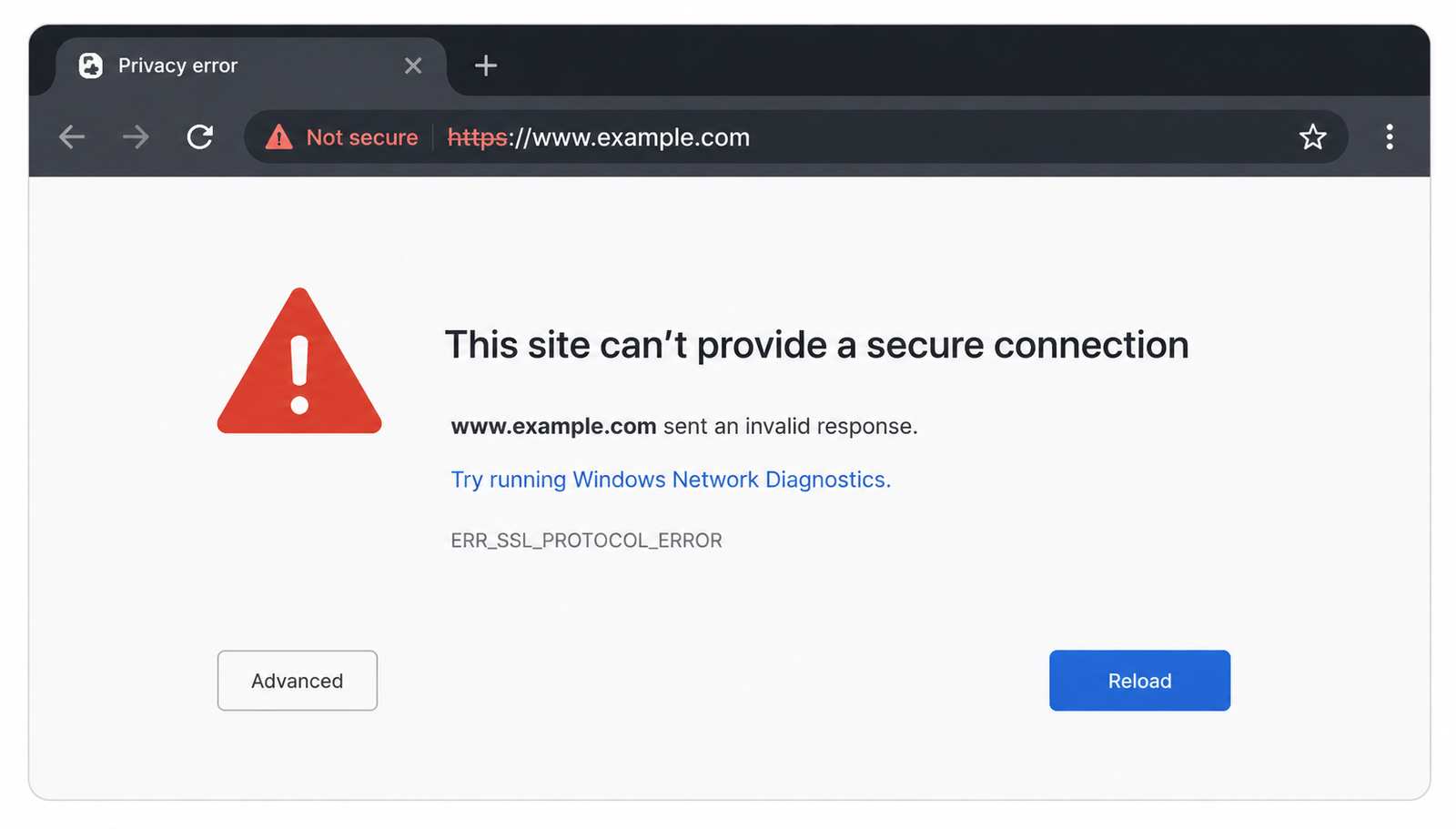
Seeing “This site can’t provide a secure connection” can be confusing, especially when other websites open normally. The message means your browser could not establish a secure HTTPS connection with the website. That does not always mean the website has a broken SSL certificate. The cause could be your browser, device, network, DNS settings, security software, or the website’s server.
The fastest way to troubleshoot the problem is to identify the exact error code shown below the message and determine whether the problem occurs on one website or several. This guide explains both visitor-side and website-owner solutions, including common Chrome, Android, iPhone, DNS, SSL, and TLS problems.
What Does “This Site Can’t Provide a Secure Connection” Mean?
When you visit an HTTPS website, your browser and the web server perform a secure connection process using TLS. The browser checks the website’s certificate and negotiates a compatible encryption method before allowing protected data to pass between you and the server.
If that process fails, Chrome or another browser may display “This site can’t provide a secure connection.” The underlying problem could be an expired certificate, incorrect system time, incompatible TLS settings, browser data, a VPN, antivirus HTTPS inspection, DNS problems, or server configuration.
Why Does This Error Happen?
There isn't one universal cause. The following table can help you identify where to start.
The important point is that SSL is only one possible part of the problem. Testing the connection from another browser, device, or network can quickly narrow down the cause.
First, Find Out Where the Problem Is
Before changing settings, perform a few simple tests. This prevents you from spending time fixing the wrong thing.
Does only one website fail?
If every other HTTPS website works but one domain shows the error, the website itself becomes more likely to be responsible. Its certificate, DNS, server, CDN, or TLS configuration may need investigation.
Do several HTTPS websites fail?
If multiple websites produce secure connection errors, look at your device, browser, DNS configuration, VPN, antivirus software, or network.
Does another browser work?
If the website opens in Firefox or Edge but fails in Chrome, the issue may be related to Chrome's cache, extensions, profile, or security settings.
Does mobile data work while Wi-Fi fails?
This is a particularly useful test. If the website works over mobile data but not your Wi-Fi connection, investigate DNS, router settings, ISP filtering, VPNs, or network security.
Does the problem occur on every device?
If your computer, phone, and another device all fail to connect while other websites work, the problem is more likely to be related to the website or network rather than one device.
Check the Exact Error Code
The message itself doesn't provide enough information. Look for the technical code underneath it.
For example, ERR_SSL_PROTOCOL_ERROR doesn't automatically mean your SSL certificate has expired. It can involve the browser, network, server, or TLS negotiation.
How to Fix “This Site Can’t Provide a Secure Connection” as a Visitor
If you're simply trying to visit a website, work through these fixes in order.
1. Check Your Date and Time
An incorrect system clock can make a valid certificate appear expired or not yet valid.
On Windows, enable automatic date and time synchronization. On Android and iPhone, use automatic date and time under the system's date and time settings.
2. Try Incognito or Private Mode
Open the website in an Incognito window in Chrome or Private Browsing in another browser.
If it works there, an extension, cookie, cached file, or browser profile setting may be responsible.
3. Clear Browser Cache and Cookies
Old browser data can sometimes interfere with website connections.
Clear cached files and cookies for the affected site, restart the browser, and try again. You don't necessarily need to erase all browser data immediately; testing the site in private mode first can help identify whether stored data is involved.
4. Disable Browser Extensions
Extensions that modify traffic can interfere with HTTPS connections.
Pay particular attention to:
VPN extensions
Security extensions
Proxy extensions
Ad blockers
Privacy tools
Disable them temporarily and reload the website. Re-enable them afterward if they aren't responsible.
5. Update Your Browser
An outdated browser may have compatibility problems with newer security standards.
Install the latest available version of Chrome, Edge, Firefox, or Safari, then restart the browser.
6. Check VPN and Proxy Settings
A VPN or proxy can change how your browser reaches the website.
Disconnect your VPN temporarily and test the website again. If it works afterward, investigate the VPN server, protocol, DNS settings, or filtering configuration rather than permanently leaving the VPN disabled.
7. Check Antivirus HTTPS Scanning
Some security products inspect encrypted HTTPS traffic. In certain configurations, that inspection can cause connection errors.
Check your antivirus or endpoint security settings for HTTPS or encrypted-traffic inspection. Avoid permanently disabling security protection just to access a website you don't trust.
8. Try Another Network
Connect your device to a trusted mobile hotspot or another Wi-Fi network.
If the website suddenly works, the original network may have a DNS, firewall, filtering, router, or ISP-related problem.
9. Flush Your DNS Cache
Your computer may have an outdated DNS record.
On Windows, open Command Prompt and run:
ipconfig /flushdns
Then restart your browser and test the website again.
10. Restart Your Router
If several devices on the same Wi-Fi network experience the problem, restart the router and test again.
If the problem continues, changing the network's DNS resolver or contacting your ISP may be appropriate.
How to Fix the Error if You Own the Website
Website owners should investigate the server side if visitors consistently receive the error.
Check the SSL Certificate
Verify that the certificate is:
Valid
Not expired
Issued by a trusted certificate authority
Installed correctly
Associated with the correct private key
Also confirm that the certificate covers the exact hostname visitors are using.
Check the Certificate Chain
A certificate can appear valid while the server fails to provide the necessary certificate chain.
Use an SSL testing service to inspect the certificate chain, hostname, expiration date, and TLS configuration.
Verify HTTPS and Port 443
Your web server should be correctly configured to accept HTTPS traffic on port 443.
Check the HTTPS virtual host, certificate files, private key, and server configuration after hosting or server changes.
Check TLS Compatibility
Modern websites should support current TLS versions and secure cipher configurations.
If your server only supports outdated protocols or has incompatible TLS settings, some browsers and devices may refuse the connection.
Check DNS After a Hosting Migration
A recent hosting migration can create confusing SSL problems.
For example:
Domain → DNS record → New server → SSL certificate
If DNS still points toward an old server while the certificate is installed on the new server, visitors may encounter certificate or HTTPS errors.
Check CDN or Cloudflare Settings
If your website uses a CDN or reverse proxy, check its SSL/TLS configuration and confirm that the origin server is also correctly configured.
Pay attention to:
DNS records
Proxy status
Origin certificate
TLS mode
HTTPS redirects
Certificate coverage
A CDN configuration problem can make an otherwise valid origin certificate appear inaccessible to visitors.
Check for Mixed Content
Mixed content occurs when an HTTPS page attempts to load resources over HTTP.
Although mixed content is not identical to every secure connection error, incorrectly configured HTTP resources can create security warnings and should be corrected by changing resource URLs to HTTPS.
What If the Website Works for Some People but Not Others?
This is one of the most important clues.
Suppose a website fails on your office Wi-Fi but works on your phone using mobile data. The website may not be universally broken.
Possible causes include:
DNS differences
Corporate firewall rules
ISP filtering
Antivirus inspection
Web reputation systems
VPN or proxy settings
IPv4/IPv6 differences
Cached DNS information
CDN routing
For example:
Office Wi-Fi → Error
Mobile data → Website works
Start by comparing DNS and security filtering on the two networks. If the problem follows a specific network rather than a specific device, network troubleshooting should take priority.
How to Test Your Website's SSL Configuration
Website owners can use an SSL diagnostic service to examine their HTTPS configuration.
Check for:
Certificate expiration
Hostname coverage
Certificate chain
TLS versions
Cipher compatibility
Server configuration
Protocol errors
You should also inspect the certificate directly from the browser by selecting the site's connection/security information.
Testing from more than one network is useful because an SSL configuration can appear healthy from one location while DNS, routing, or filtering causes problems elsewhere.
Is “This Site Can’t Provide a Secure Connection” Dangerous?
The message itself does not prove that your computer has a virus or that the website is malicious. It means the browser could not establish the secure connection it expected.
However, don't bypass certificate or browser security warnings simply because you need access to a website. If the site handles passwords, financial information, or sensitive data, wait until the connection problem has been resolved and the certificate can be trusted.
When Should You Contact Your Hosting Provider?
Contact your hosting provider when:
Your SSL certificate cannot be installed or renewed
DNS points to the wrong server
HTTPS stopped working after migration
Port 443 isn't functioning correctly
You cannot change TLS settings
Your CDN and origin server disagree about SSL
Multiple users consistently receive the same error
Before contacting support, collect the exact error code, affected domain, browser, device, network, time of failure, and results from another network. This gives support enough information to investigate the problem faster.
How to Prevent Secure Connection Errors
Website owners can reduce future HTTPS problems by monitoring certificate expiration, testing SSL after migrations, keeping TLS configurations current, monitoring DNS changes, and reviewing CDN settings after infrastructure updates.
Visitors should keep their browsers and operating systems updated, avoid unnecessary VPN/proxy configurations, and make sure their device date and time are synchronized.
A proactive SSL monitoring process is especially valuable for business websites because certificate failures can prevent customers from reaching login pages, stores, forms, and other important services.
Conclusion
“This site can’t provide a secure connection” is a symptom, not a single diagnosis. The real cause may be an expired certificate, browser cache, incorrect device time, DNS issue, VPN, antivirus inspection, network filtering, TLS incompatibility, or server configuration.
Start by checking the exact error code and testing the website from another browser, device, and network. If the problem follows the website, investigate SSL, DNS, TLS, CDN, and server settings. If it follows your device or network, focus on browser, DNS, VPN, security software, and network configuration.
The goal isn't to try every possible fix. Identify where the connection fails first, then apply the solution that matches the cause.
Frequently Asked Questions
Why does it say “This site can’t provide a secure connection”?
It means your browser could not establish a secure HTTPS/TLS connection with the website. The cause can be an SSL certificate problem, browser issue, incorrect device time, DNS problem, network filtering, or server configuration.
How do I fix “This site can’t provide a secure connection” in Chrome?
Start by checking your date and time, opening the website in Incognito mode, clearing site data, disabling extensions, updating Chrome, and testing another network. If other devices also fail, the website may need investigation.
Why does Chrome show ERR_SSL_PROTOCOL_ERROR?
ERR_SSL_PROTOCOL_ERROR generally indicates that the browser could not complete the expected secure connection. It can originate from the browser, network, TLS configuration, or web server, so testing another network is a useful first diagnostic step.
Can an expired SSL certificate cause this error?
Yes. An expired or incorrectly configured certificate can prevent a browser from establishing a trusted HTTPS connection. However, not every secure connection error is caused by an expired certificate.
Why does the website work on mobile data but not Wi-Fi?
This usually points toward a network-specific problem. DNS settings, router configuration, ISP filtering, firewall rules, VPNs, or security software may be interfering with the connection.
Why does the website work for me but not someone else?
Different users may use different DNS providers, networks, VPNs, browsers, security software, or ISPs. If only certain users experience the error, compare networks and devices before changing the website's SSL configuration.
Is “This site can’t provide a secure connection” a virus?
Not necessarily. The message indicates a failed or untrusted secure connection, not proof of malware. Don't bypass browser security warnings simply to access the website, especially when entering sensitive information.
Leave a Reply